
Free Google Sheets Travel Planner & Itinerary Template
Matt - May 5, 2026
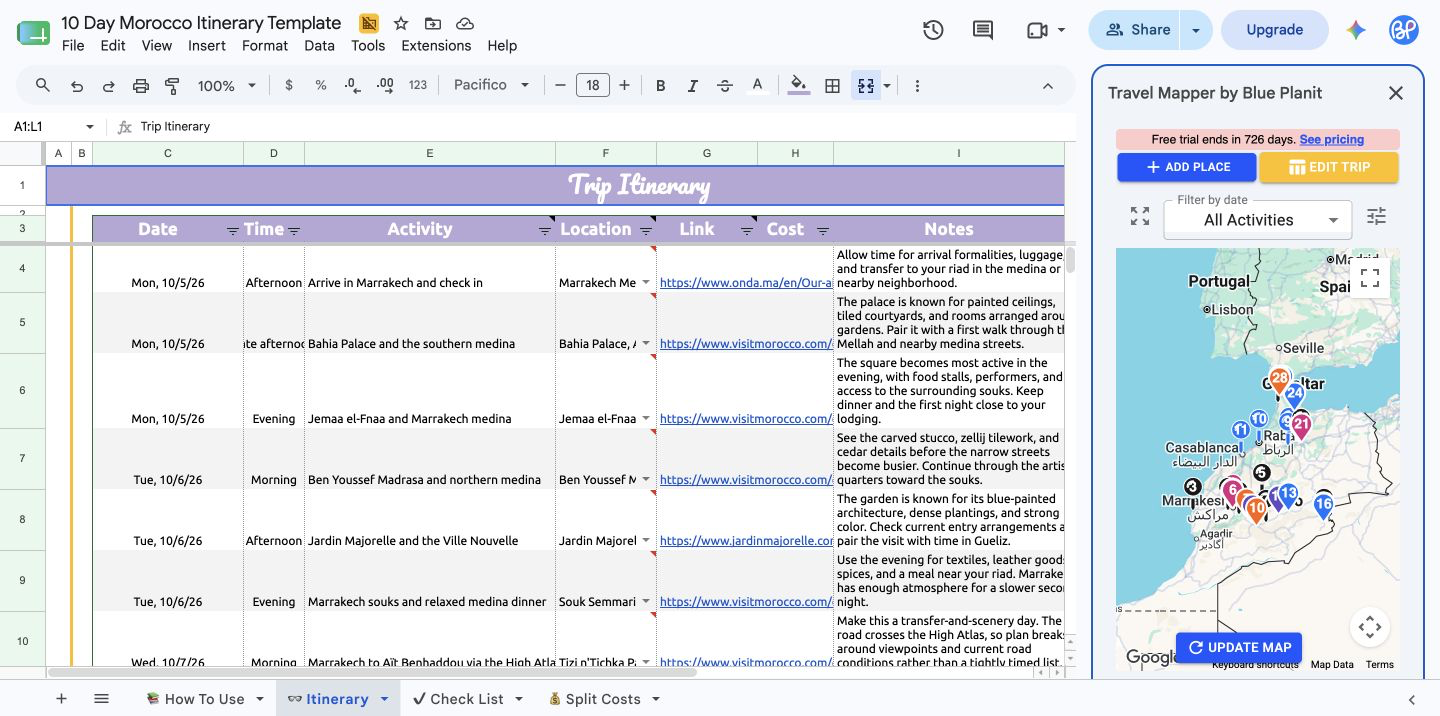
Copy this free Google Sheets travel planner and itinerary template to organize flights, lodging, activities, transportation, costs, packing, notes, links, and destinations in one shareable spreadsheet.
You can keep using the basic spreadsheet for free. When you want to see your itinerary on a map, add places faster, reorder stops, email the itinerary, or export trip locations to Google My Maps, install Travel Mapper for Google Sheets and try the full add-on feature set free for 7 days.
Use it for a weekend away, a road trip, or a multi-day, multi-city itinerary where timing, stop order, and collaboration matter.
Free template vs Travel Mapper add-on
The Google Sheets planner is the starting point and can be used for free for basic planning. Travel Mapper is the map-powered upgrade for the same workflow: install the add-on when you want map view, Google Maps autofill, drag-and-drop itinerary editing, itinerary summary email, and Google My Maps export.
Try all Travel Mapper features free for 7 days. If you do not subscribe, you can still keep using the basic Google Sheets template. Generating a new template for basic planning is always free and unlimited.
Install Travel Mapper for Google Sheets to see your itinerary on a map and use the advanced planning features during your trial.
Planning a more complex route? Read the multi-city vacation planning guide, or compare examples like the New Zealand 7-day itinerary, 14-day Japan itinerary, and one-week Rome itinerary.
What’s included in the Google Sheets travel planner template
This travel planner template keeps itineraries, lodging, flights, activities, costs, packing, notes, and destinations organized in one Google Sheet.
Here is what the template includes.
1. Itinerary planner tab
The itinerary planner tab is the main planning area. This is where you organize the day-by-day structure of your trip: where you are going, what you are doing, when things happen, and what details you need for each stop.
Use it to plan:
- Daily activities
- Restaurants and cafes
- Tours and reservations
- Hotels and lodging
- Transportation details
- Confirmation numbers
- Opening hours
- Estimated costs
- Categories
- Notes for each stop
- Important links
This tab is the heart of the template. Instead of keeping your hotels in one app, activities in another, links in your browser, and notes in a separate document, the itinerary planner tab gives you one central place to build the trip.
2. Map-ready destination fields
A good travel planner should connect that list to dates, locations, logistics, costs, and map context. It should help you understand where everything is.
The itinerary tab is structured so your destinations can be added in a clean, map-ready format. That makes it easier to take the places in your spreadsheet and view them visually with Travel Mapper.
Use these destination fields for:
- City names
- Attractions
- Restaurants
- Hotels
- Train stations
- Airports
- Day trip locations
- Scenic stops
This is especially helpful for trips where location matters, like road trips, city itineraries, and multi-destination vacations.
🗺️ Want to see these destinations on a map? Install the Travel Mapper Google Sheets add-on to turn your spreadsheet itinerary into a visual trip map. 🗺️
3. Packing list and pre-trip to-do tab
The packing list tab helps you prepare before the trip and avoid last-minute scrambling. It gives you a place to track what you need to bring, what you have already packed, and what still needs to be purchased.
You can organize packing items by category, such as:
- Clothing
- Toiletries
- Electronics
- Travel documents
- Medications
- Outdoor gear
- Baby or family items
- Destination-specific items
This tab also works as a pre-trip to-do checklist. Use it for tasks you need to complete before departure, such as:
- Book train tickets
- Apply for a visa
- Reserve museum tickets
- Buy travel insurance
- Download offline maps
- Confirm hotel check-in details
- Arrange airport transportation
- Notify your bank about international travel
For example, a New Zealand itinerary might include hiking shoes, rain gear, outlet adapters, and a daypack. A Japan itinerary might include booking Shinkansen tickets, reserving popular restaurants, and confirming whether any attractions require timed entry.
4. Cost tracking and cost splitting
The template includes space to track trip costs so you can estimate your budget before and during the trip.
You can use it to organize costs for:
- Flights
- Hotels
- Rental cars
- Train tickets
- Tours
- Restaurants
- Attractions
- Travel insurance
- Shared expenses
This is especially useful for group trips because everyone can see estimated costs in one place.
On the Split Costs tab, enter each shared expense and mark who participated in columns E through J — using 1 for each person splitting the cost, 0 for anyone excluded. The template automatically calculates who owes money and who should be paid back.
5. Google Sheets collaboration
Because the template is built in Google Sheets, it is easy to share with other people.
That makes it useful for:
- Couples planning a trip together
- Friend groups comparing activity ideas
- Families organizing hotels, transportation, packing, and pre-trip tasks
- Group trips where multiple people are contributing plans
Instead of texting links back and forth, everyone can work from the same planner.
How to use the Google Sheets travel planner template
The goal of this template is to make trip planning easier without adding extra complexity. Here is the simplest way to use it.
Step 1: Make a copy of the template
Start by opening the template and making your own copy in Google Sheets.
Once you have your own version, rename it for your trip. For example:
- Japan 14-Day Itinerary
- New Zealand 7-Day Road Trip
- Rome One-Week Itinerary
- Amsterdam Weekend Trip
Step 2: Add your trip dates and destinations
Next, add the dates of your trip and the major places you plan to visit.
For a simple city trip, this might only be one destination. For a multi-city trip, this might include several cities or regions.
Examples:
- Tokyo → Kyoto → Osaka
- Queenstown → Wanaka → Mount Cook → Te Anau → Milford Sound
- Rome → Vatican City → Trastevere → Colosseum area
- Prague Old Town → Prague Castle → Mala Strana
At this stage, do not worry about making the schedule perfect. The first goal is to get your trip structure into the sheet.
Step 3: Fill in your day-by-day itinerary
Once your destinations are listed, start assigning activities to each day.
A helpful approach is to separate your plans into:
- Must-do activities
- Nice-to-have activities
- Restaurants or food stops
- Travel days
- Free time
- Backup options
This helps you avoid overpacking the schedule. A common mistake is adding too many activities to each day without accounting for transit time, meals, weather, rest, or delays.
Step 4: Add transportation and lodging details
Next, add the logistics that keep the trip running smoothly.
Add details like:
- Flight arrival and departure times
- Train or bus departure times
- Rental car pickup and drop-off
- Hotel check-in and check-out dates
- Hotel addresses
- Confirmation numbers
- Links to tickets or reservations
This step is where a spreadsheet becomes especially useful. You can quickly spot problems like booking a hotel for the wrong night, scheduling an early tour after a late arrival, or leaving too little time between transportation legs.
Step 5: Add costs, notes, and links
After the major itinerary is built, add the supporting details directly into the itinerary tab.
Use the cost fields to estimate your budget. Use the notes fields for anything you might need later. Use the links fields to keep tickets, restaurant pages, maps, and booking confirmations close at hand.
This is what turns the sheet from a simple itinerary into a complete travel planning hub.
Step 6: Use the packing list and pre-trip to-do checklist
As your trip gets closer, use the packing list and to-do checklist to prepare.
A good packing list should match the type of trip you are taking. For example:
- A New Zealand road trip may need hiking layers, rain gear, and a daypack.
- A Rome trip may need walking shoes, church-appropriate clothing, and printed museum tickets.
- An Azores trip may need swimwear, hiking shoes, motion sickness tablets, and waterproof layers.
The to-do checklist is for tasks you need to finish before the trip, such as booking train tickets, applying for a visa, reserving timed-entry attractions, buying travel insurance, or downloading offline maps.
The template gives you a starting point, but you can customize it based on your destination and travel style.
Step 7: View your itinerary on a map with Travel Mapper
Once your destinations and itinerary are in the sheet, the next step is to visualize the trip.
That is where Travel Mapper helps. Instead of reading your itinerary only as rows and columns, you can view your destinations on a map and better understand how your trip is laid out geographically.
This is especially helpful when you want to:
- See whether your daily plan makes sense
- Group nearby places together
- Avoid unnecessary backtracking
- Understand how far apart hotels, restaurants, and attractions are
- Make your itinerary easier to use during the trip
Free travel itinerary template examples
The template can be used for many kinds of trips. Here are a few examples you can use as starting points.
14-day Japan itinerary template

A Japan trip is a great example of why a spreadsheet travel planner is useful. Many travelers are balancing hotels, trains, day trips, restaurants, temples, shopping districts, and multiple cities.
Use the Japan template if you want to plan a longer itinerary with several major stops and detailed daily activities.
Best for: multi-city international trips, train-based travel, food-heavy itineraries, detailed daily planning.
Check out: 14 Day Japan Itinerary - Tokyo, Osaka, Kyoto
7-day New Zealand itinerary template

A New Zealand itinerary is often very logistics-heavy because driving time, scenic stops, hikes, weather, and hotel locations matter so much.
Use the New Zealand template if you are planning a South Island road trip and want to keep each drive, stop, and overnight location organized.
Best for: road trips, scenic drives, hikes, rental car travel, outdoor itineraries
Rome travel itinerary template

Rome is a great city for a structured itinerary because many major attractions require planning ahead. The Colosseum, Vatican Museums, St. Peter’s Basilica, Trastevere, and popular restaurants can easily fill several days.
Use the Rome template if you want to organize neighborhoods, museum reservations, restaurants, and walking-heavy days.
Best for: city trips, museum planning, walking itineraries, restaurant planning
Check out: One Week Itinerary to Rome, Italy
Prague travel itinerary template

Prague is compact enough for a short trip, but it still helps to organize attractions by area. Old Town, Charles Bridge, Prague Castle, Mala Strana, and local food stops are easier to plan when you can see everything by day.
Use the Prague template if you want a simple city itinerary with a mix of sightseeing, restaurants, and free time.
Best for: weekend trips, city breaks, walking routes, first-time visitors
Check out: Google Sheets template
Amsterdam travel itinerary template

Amsterdam is another destination where location-based planning matters. Museums, canals, neighborhoods, restaurants, and day trips can be organized much more cleanly in a spreadsheet.
Use the Amsterdam template if you want to balance museum reservations, neighborhood exploring, canal walks, food stops, and optional day trips.
Best for: city breaks, museum planning, neighborhood-based itineraries, first-time visits
Check out: Google Sheets template
Azores travel itinerary template

The Azores are ideal for a travel planner because many activities depend on geography and weather. Hot springs, hikes, viewpoints, whale watching, beaches, and scenic drives all need flexible planning.
Use the Azores template if you want to organize nature-heavy days while leaving room to adjust plans based on weather.
Best for: outdoor trips, island itineraries, scenic drives, flexible planning
Check out: Google Sheets template
Why use Travel Mapper with a Google Sheets travel planner?
Google Sheets is excellent for organizing trip details, but spreadsheets have one major limitation: they do not naturally show you where your plans are located.
That is exactly why Travel Mapper works well with this template.
Travel Mapper lets you turn a spreadsheet-based itinerary into a more visual planning experience. You can use the structure of Google Sheets while also seeing your destinations on a map.
With Travel Mapper, you can:
- View itinerary locations on a map
- Add places faster with Google Maps-powered autofill
- Edit your trip on the go with the web app
- Use drag-and-drop editing to fine tune your itinerary
- Generate an email summary for easy reference while traveling
- Keep planning collaborative through Google Sheets
This is useful because detailed travel planning usually needs both structure and geography.
A spreadsheet helps you organize the details. A map helps you understand the trip.
Travel Mapper connects those two workflows.
Who this template is best for
This Google Sheets travel planner template is a good fit if you:
- Like planning trips in detail
- Want a free travel itinerary template
- Prefer Google Sheets over a closed travel app
- Are planning a multi-day or multi-city trip
- Want to collaborate with other travelers
- Need a packing list and cost tracker
- Want your destinations to be ready for mapping
- Like having control over your itinerary format
It is especially helpful for trips with multiple moving parts: different hotels, transportation legs, activities, restaurants, and day-by-day plans.
Who may not need this template
You may not need a full spreadsheet planner if your trip is extremely simple.
For example, if you are booking one hotel for a weekend and only have one or two activities planned, a basic notes app might be enough.
But if your trip includes multiple days, multiple stops, group coordination, a budget, a packing list, or lots of saved places, a Google Sheets travel planner can make the process much easier.
Download the free Google Sheets travel planner template
Use this template as your starting point for planning your next trip. Add your dates, destinations, activities, costs, notes, links, and packing list. Then use Travel Mapper to turn the itinerary into a visual map-based plan.
Add Travel Mapper to your template
After you make a copy of the template, install Travel Mapper for Google Sheets when you want to see your itinerary on a map, autofill places from Google Maps, reorder itinerary items, email the itinerary, or export trip locations to Google My Maps.
The full add-on feature set is available during the 7-day trial. If you do not upgrade after the trial, you can still keep using the basic Google Sheets template and generate new templates for basic planning.
FAQ
Is there a free Google Sheets travel planner template?
Yes. You can use this free Google Sheets travel planner template to organize your itinerary, destinations, packing list, costs, notes, links, and travel details in one place.
Can I use Google Sheets to plan a trip?
Yes. Google Sheets is a useful trip planning tool because it is flexible, shareable, and easy to customize. It works especially well for multi-day trips, group trips, road trips, and detailed itineraries.
What should a travel planner template include?
A good travel planner template should include your trip dates, destinations, daily itinerary, transportation, lodging, costs, packing list, notes, important links, and map-ready location details.
Can I share this travel planner with other people?
Yes. Since the template is built in Google Sheets, you can share it with friends, family, or other travelers and plan together.
Can I map my Google Sheets travel itinerary?
Yes. With Travel Mapper, you can use your spreadsheet-based itinerary with a map so you can see where your destinations are located and organize your trip more visually.
Is this template better than a travel planning app?
It depends on how you like to plan. A Google Sheets travel planner gives you flexibility and control. A travel planning app may be better if you prefer a more guided experience. Travel Mapper combines both by letting you organize your trip in Google Sheets and view destinations on a map.
What is free, and what is included in the 7-day trial?
You can use the basic Google Sheets planner for free and generate new templates for basic planning. The Travel Mapper add-on gives full access to map view, drag-and-drop itinerary editing, Google Maps autofill, itinerary email, and Google My Maps export during the 7-day trial. Those map-powered add-on features are paid after the trial.