
How to Plan a Multi-City Vacation Using Google Sheets (Free Template Included)
Matt - September 10, 2025
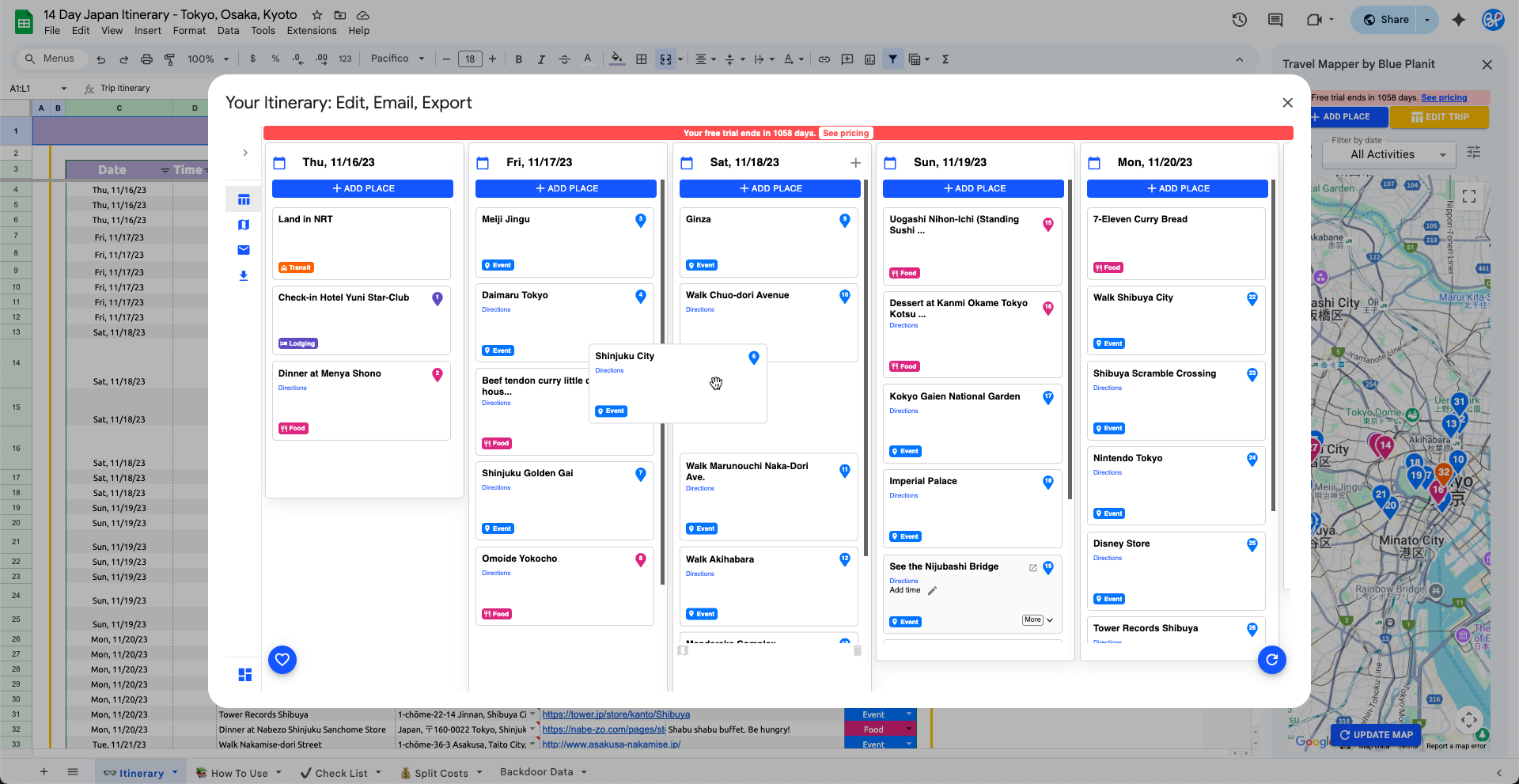
Use this guide to plan a multi-city vacation in Google Sheets: choose your stops, put them in a sensible route order, track transport and lodging, then organize activities, costs, notes, and links in one shared spreadsheet.
Start with the free Google Sheets travel planner template when you want a flexible planning sheet. When you want to see your itinerary on a map, add and autofill activities from the map, reorder stops, email the itinerary, or export places to Google My Maps, install Travel Mapper for Google Sheets. Generating a new template for basic planning is always free and unlimited.
Why Multi-City Trips Are Hard to Plan
Single-destination vacations are straightforward: book a roundtrip flight, reserve your hotel, and fill in activities. Multi-city trips? That’s another story.
Here are the common challenges:
- Route inefficiency - accidentally backtracking between cities, wasting time and money.
- Logistics overload - juggling multiple transport methods (flights, trains, buses, ferries).
- Scattered notes - keeping accommodations in one app, activities in another, and transport in emails.
- Group confusion - when traveling with others, it’s hard to keep everyone aligned.
That’s why many travelers look for a multi-destination trip planner or vacation planning template - to bring order to the chaos.
Step-by-Step Guide: How to Plan a Multi-City Vacation
Follow these steps to make planning smooth and efficient.
1. Choose Your Destinations & Sequence Them Logically
List out the cities you want to visit. Then, check a map. Group cities that are geographically close and avoid unnecessary backtracking.
👉 Example: For a 7-day Japan trip, you might choose Tokyo → Kyoto → Osaka → Hiroshima rather than bouncing back and forth between Tokyo and Kyoto.
2. Budget Your Time Per City
Be realistic. A good rule of thumb:
- Major hubs (Paris, Tokyo, New York): 3-4 days minimum.
- Medium-sized cities: 2-3 days.
- Small towns or day trips: 1 day.
📍 Example: In Japan, you could spend 3 days in Tokyo, 2 days in Kyoto, 1 day in Osaka, and 1 day in Hiroshima for a balanced week.
3. Plan Your Transport Between Stops
Decide how you’ll move between destinations: plane, train, bus, or rental car. Note down departure times, arrival times, and booking links.
📍 Example: Use the Shinkansen bullet train to travel from Tokyo to Kyoto (about 2h20m), Kyoto to Osaka (15m), and Osaka to Hiroshima (1h30m). Record these details in your sheet so they’re easy to reference.
4. Organize Accommodations
Track check-in/out dates alongside transport details so you don’t double-book or leave gaps.
📍 Example: If your train from Tokyo arrives in Kyoto at noon, book a hotel with afternoon check-in, then log the confirmation number and address in your sheet.
5. Add Daily Activities
For each city, jot down “must-do” sights, restaurants, and experiences. Organize them by day.
📍 Example: In Kyoto, plan to visit Fushimi Inari Shrine in the morning, Kiyomizu-dera Temple midday, and Gion district in the evening. Add notes in the daily activities tab of your sheet.
6. Map It All Out Visually
This is where a spreadsheet is especially useful: by putting dates, transport, lodging, and activities in one place, you can quickly scan for overlaps, gaps, or conflicts before committing to bookings. While this step doesn’t plot things on a map yet - that’s what a tool like Travel Mapper can do - it provides the structured overview you need to see whether your plan is realistic and balanced.
📍 Example: Mapping Tokyo activities like the Skytree and Shibuya Crossing on the same day may look efficient on paper, but since they’re far apart in the city, you may want to split them across days to reduce travel time.
Start with the free Google Sheets travel planner template to organize your itinerary. When you are ready to review route order and daily stops on a map, install Travel Mapper for Google Sheets to use the map view, reorder stops with drag and drop, add places with Google Maps autofill, email the itinerary, and export it to Google My Maps. The full add-on feature set is free for seven days, and the basic Google Sheets template remains available afterward.
7. Refine and Optimize Your Schedule
Once everything is mapped out, take time to refine your plan. Look for long travel days followed by packed activity schedules, and adjust for balance. Check if you can cluster attractions by neighborhood to save transit time. Consider shifting destinations or activities to improve flow and reduce backtracking.
📍 Example: After mapping, you might notice Hiroshima is a long train ride from Osaka - so keep the following day’s schedule light, focusing only on key attractions like Peace Memorial Park. This way the trip feels less rushed and more enjoyable.
Free Multi-City Trip Planning Template
Use the template to keep the trip structure visible before you book: destinations, dates, transport, hotels, activities, costs, links, notes, packing tasks, and shared expenses.
- A trip overview for each city, date, time, category, link, cost, and note
- A packing and pre-trip checklist for visas, train tickets, adapters, reservations, and other tasks
- A split-cost calculator for shared lodging, transport, meals, and activities
Check out this multi-city trip template example or use the Google Sheets travel planner template to start planning your trip.
The spreadsheet is useful on its own. Travel Mapper adds the map layer when you want to check whether your city order, neighborhoods, day trips, and hotel choices make sense geographically.
How Travel Mapper upgrades the spreadsheet
Keep the flexibility of Google Sheets, but add the map tools a plain spreadsheet is missing. Travel Mapper is built for travelers who like planning in a sheet and need a clearer way to check route order, timing, and logistics.

With Travel Mapper, your trip becomes smarter and more flexible: add stops instantly, adjust plans visually, and keep an email copy handy on the road.
Example multi-city trips you can plan
The same workflow works for city-to-city rail trips, road trips with several overnight stops, and destination itineraries with day trips.
- 14-day Japan itinerary: Tokyo, Kyoto, Osaka, and day trips where route order and train timing matter.
- 7-day New Zealand itinerary: Queenstown, Wanaka, Mount Cook, Te Anau, and Milford Sound with long drives and lodging changes.
For each trip, add the cities and stops to the sheet first, then use the map view to catch awkward backtracking before you book.

FAQs About Multi-City Vacation Planning
What is the best way to plan a multi-city trip?
Start with a master itinerary in Google Sheets, then check the stop sequence on a map before booking. Put each city, hotel, attraction, restaurant, and transport leg in one place so gaps and backtracking are easier to spot.
Is there a free multi-city travel planner?
Yes. You can use the free Google Sheets template linked above to organize the basic itinerary, packing list, costs, notes, and links. Travel Mapper adds paid map-based tools after the 7-day full-feature trial.
How do I avoid backtracking between cities?
Plot the cities and day trips on a map before locking hotels and transport. For complicated routes, Travel Mapper helps you see stops visually so you can adjust the order before the trip becomes expensive to change.
Can I plan a group multi-city trip in Google Sheets?
Yes. Share the Google Sheet with your travel companions so everyone can add notes, reservation links, costs, and must-see stops. This works especially well when the group needs one shared source of truth.
Final Thoughts
A multi-city trip is easier to plan when the spreadsheet and the map work together. Use the sheet to organize the details, then check the route visually before you commit to flights, trains, hotels, and long travel days.
Start with the free template. When you want map-based planning tools inside the same workflow, install Travel Mapper for Google Sheets. Generating a new template for basic planning is always free and unlimited. You can also use the Travel Mapper web app from a mobile browser when you want to access and edit the trip from your phone. If you plan from a laptop, the Travel Mapper Chrome Extension also lets you add places to your itinerary from any tab in Chrome.